A Mac on a desk needs something to point with, and Apple makes two: the Magic Mouse and the Magic Trackpad. They do the same job in very different ways, and most people strongly prefer one or the other. This guide helps you work out which you are, and which Magic Keyboard to put beside it.
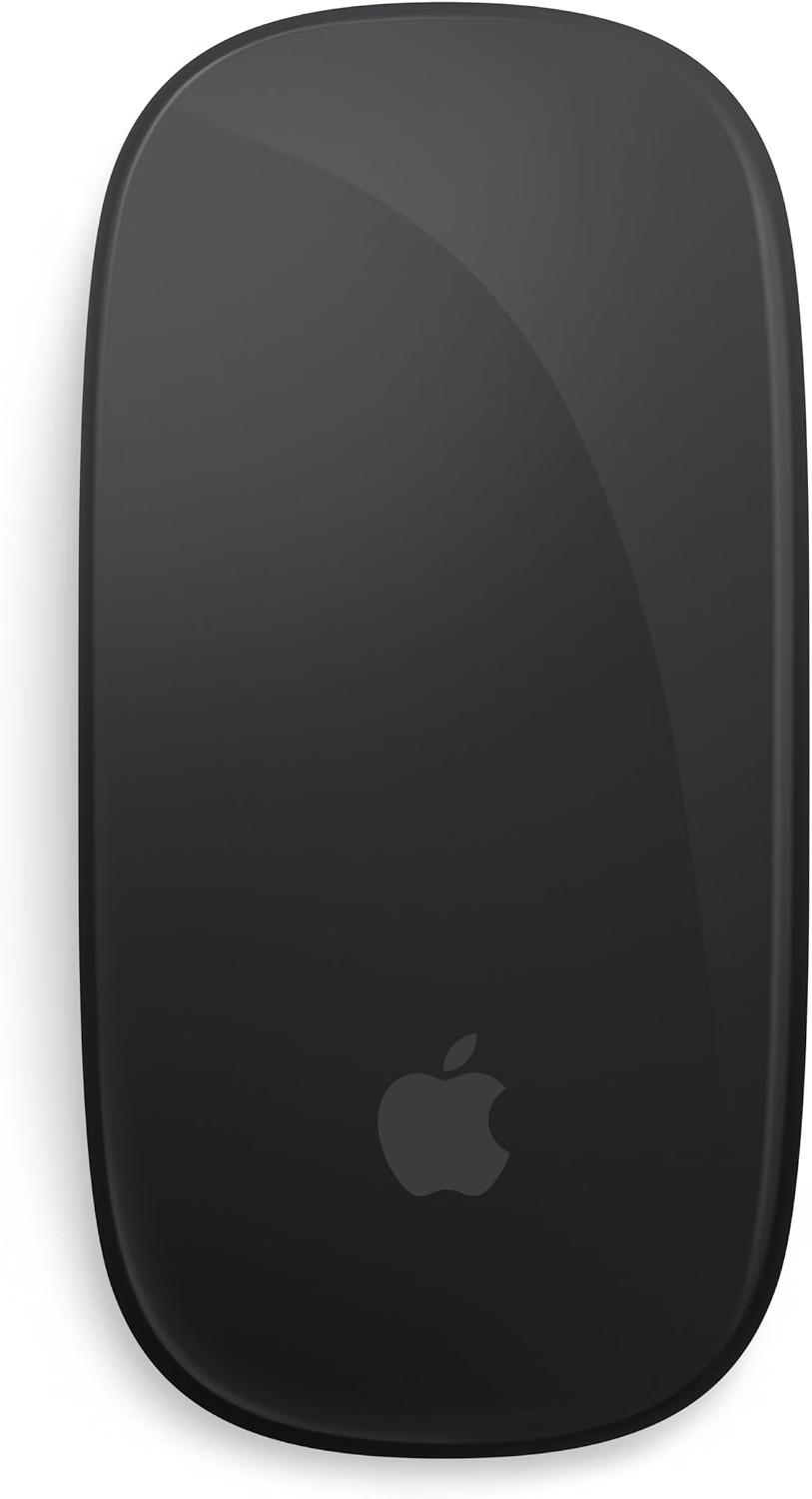
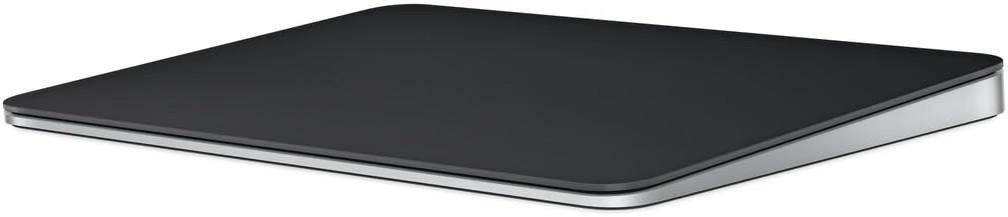
Magic Mouse and Magic Trackpad side by side
The specification as it appears on our product pages:
| Magic Mouse | Magic Trackpad | |
|---|---|---|
| Surface | Multi-Touch, for swiping between pages and scrolling | Large glass surface, every Multi-Touch gesture, Force Touch |
| Size | 2.16 cm high, 5.71 cm wide, 11.35 cm deep | 0.49 to 1.09 cm high, 16.0 cm wide, 11.49 cm deep |
| Weight | 99 g | 230 g |
| Battery | A month or more per charge | A month or more per charge |
| Charging | USB-C, on the underside | USB-C |
| Works with | Mac on macOS 15.1 or later, iPad on iPadOS 18.1 or later | Mac on macOS 15.1 or later, iPad on iPadOS 18.1 or later, Apple Vision Pro |
| Colours | White or black surface | White or black surface |
Both are wireless over Bluetooth, both pair automatically with a Mac, and both come with a woven USB-C charge cable.
Prices
The case for the Magic Trackpad
The trackpad is the MacBook trackpad, made larger and put on your desk. You get every Multi-Touch gesture macOS has: swiping between full screen apps, pinching to zoom, three finger drag, Mission Control. And you get Force Touch, which responds to how firmly you press, so a deeper press can look up a word or preview a file.
Choose it if you already use a MacBook and know the gestures, you work across many apps and windows, or you keep a MacBook closed on a stand at your desk and want the same feel you have on the go.
The case for the Magic Mouse
The mouse is about pointing. It is small and very light at 99 grams, with a low foot design that glides across the desk, and a Multi-Touch top that scrolls in any direction and swipes between pages.
Two things to know before you buy. It is low and flat, so if you have large hands or spend all day with a mouse, try one first. And its charging port is underneath, so it cannot be used while it charges. With a month or more from each charge, that rarely matters if you plug it in when you leave the desk.
Choose it if you have always used a mouse, you do precise pointing work, or your desk is small.
Or both. Plenty of people keep a mouse on one side of the keyboard and a trackpad on the other, and use whichever suits the task.
Which Magic Keyboard
There are four, and the choice comes down to two questions: do you want Touch ID, and do you want a numeric keypad?
| Keyboard | Touch ID | Numeric keypad | Charging | Colours |
|---|---|---|---|---|
| Magic Keyboard (USB-C) | No | No | USB-C | White |
| Magic Keyboard with Touch ID (USB-C) | Yes | No | USB-C | White |
| Magic Keyboard with Touch ID and Numeric Keypad (USB-C) | Yes | Yes | USB-C | White or black keys |
| Magic Keyboard with Numeric Keypad | No | Yes | Lightning | White |
Touch ID is worth it on an Apple silicon Mac
Touch ID lets you log in, unlock the Mac, approve passwords and pay with a fingertip. It needs a Mac with Apple silicon rather than an Intel processor. If you use a MacBook closed with an external display, a Touch ID keyboard brings back the fingerprint sensor you lose when the lid is shut.
The numeric keypad is for numbers people
The extended keyboards add a numeric keypad, document navigation keys and full size arrow keys. If you work in spreadsheets or accounts, it is worth the extra width: the full size keyboards are 41.87 cm wide, against 27.89 cm for the compact ones.
The Lightning one
The Magic Keyboard with Numeric Keypad, without Touch ID, is the older design. It charges over Lightning, and the cable in the box ends in USB-A, so a Mac with only USB-C ports needs an adapter or a USB-C to Lightning cable. It also works with older Macs, on macOS 10.12.4 or later, which the newer keyboards do not.
Keyboard layout
Every Magic Keyboard we stock has the US English layout.
A simple way to choose
- A MacBook user adding a desk setup: Magic Keyboard with Touch ID and a Magic Trackpad.
- Spreadsheets and accounts all day: Magic Keyboard with Touch ID and Numeric Keypad, and a Magic Mouse.
- An older Intel Mac: the Magic Keyboard (USB-C) or the Magic Keyboard with Numeric Keypad, since Touch ID needs Apple silicon. Check the macOS version first: the USB-C keyboard needs macOS 15.1 or later.
- A tight budget: the Magic Keyboard (USB-C) and the Magic Mouse.
Buying from Redwhale
We stock every keyboard, mouse and trackpad in this guide at our Ikeja store and deliver nationwide. Purchases carry a 15 day return policy.
Browse Apple accessories, or Macs if you are setting up a desk from scratch.
Every unit is tested before it leaves the counter and backed by our 15 day return policy. Visit us in Ikeja, Lagos or order online for delivery.